On this page
Invoices are what a customer owes. A studio can invoice for a private session. A plumber can invoice for a visit. Invoices do not need a “jobs” tool.
Ask your agent to turn invoices on. Online pay on an invoice also needs payments.
Start an invoice
Admin → Invoices. Use New invoice. Pick the customer and the lines. Save a draft, then Send invoice.
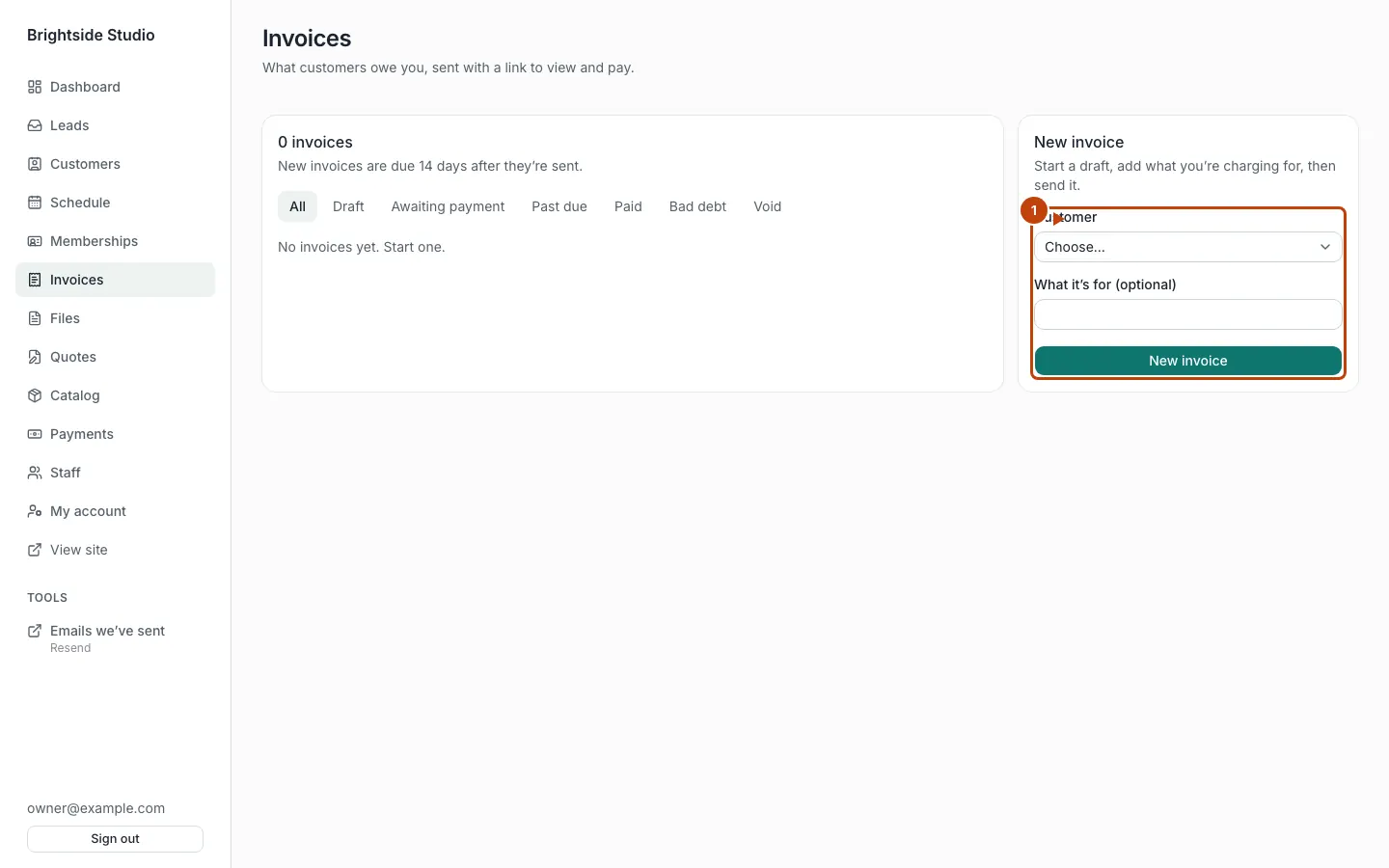
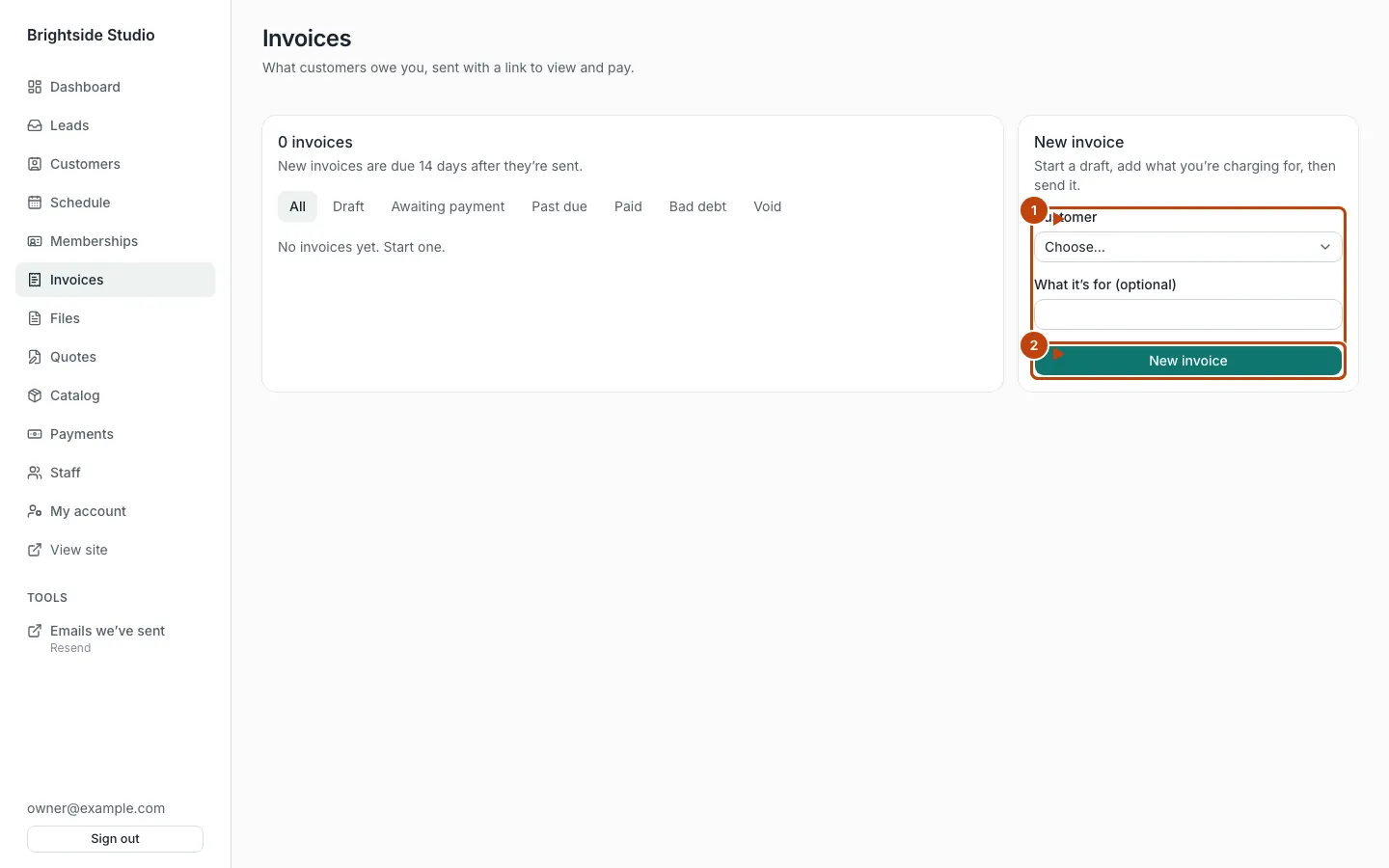
Orange numbers:
- The New invoice form. Pick the customer.
- Press New invoice to start a draft.
You can send several at once with Select all to send and Send N selected.
What the statuses mean
| Status | Meaning |
|---|---|
| Draft | Only staff see it |
| Awaiting payment | Sent. The customer has a link |
| Past due | Still awaiting payment, after the due date |
| Paid | Paid online or recorded by staff |
| Bad debt | You gave up collecting |
| Void | Canceled |
Payment terms default to 14 days unless your agent set a different paymentTermsDays.
Send the customer their link
On the invoice, Copy customer link or send it by email or text. The public page is /i/{token}. PDF downloads a copy.
With payments on, they can pay on that page. Staff can Record a payment if they paid in person.
Other actions
- Send again
- Mark bad debt
- Reopen
- Void
- Delete draft
Reminders
Overdue reminders go through messages. Ask your agent to set invoice.due and invoice.overdue follow-ups.
Tips
Invoice pay can offer a tip if invoices.tips is on in config. Ask your agent. The default is off.