On this page
Admin is the staff area at /admin. Customers use a different area, the portal. You sign in on the same page.
Open the sign-in page
Go to https://YOUR-DOMAIN/sign-in.
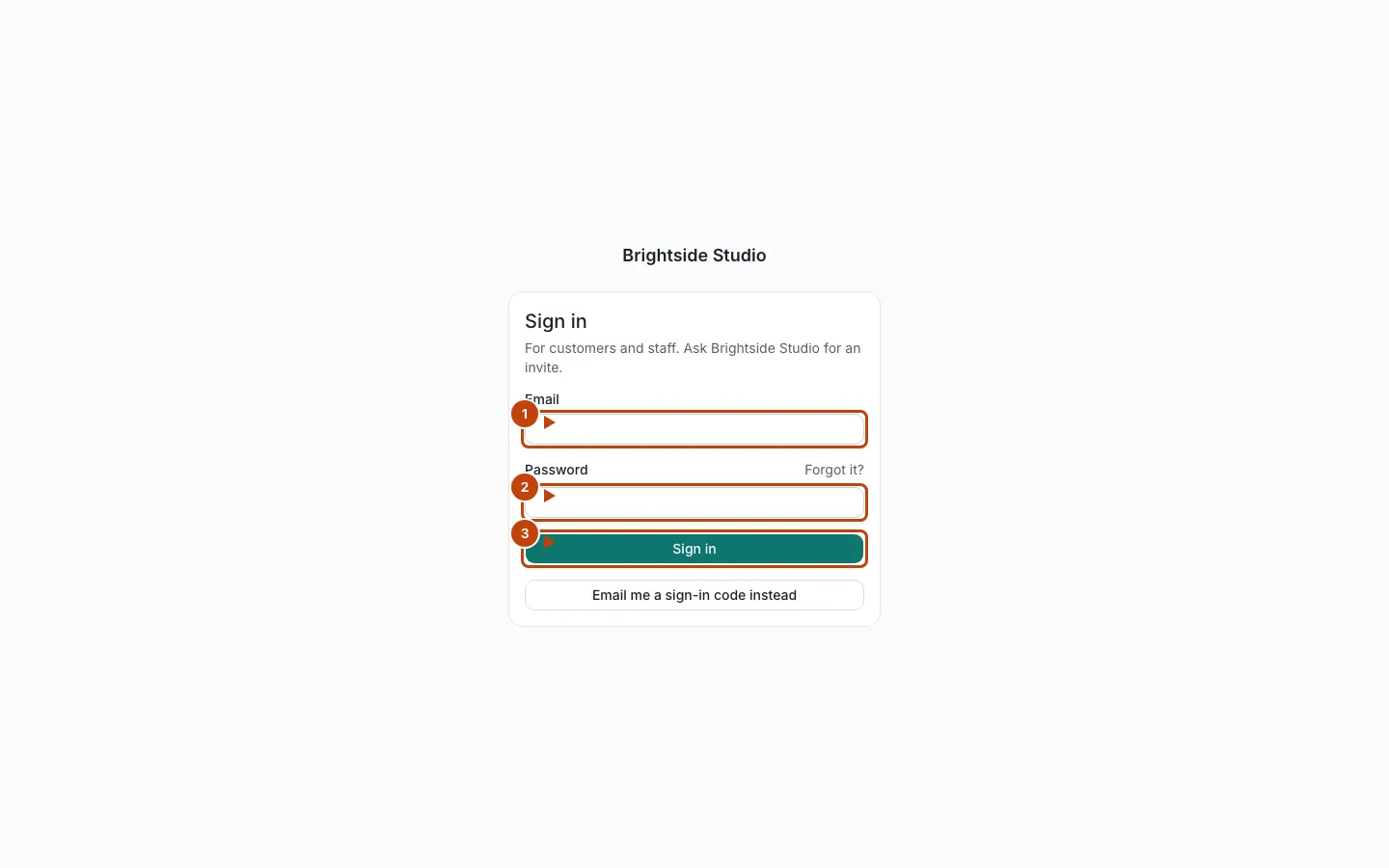
Orange numbers on the screenshot:
- Type your email
- Type your password
- Press Sign in
You can also press Email me a sign-in code instead, then enter the code from your inbox. If you forget your password, use Forgot it?
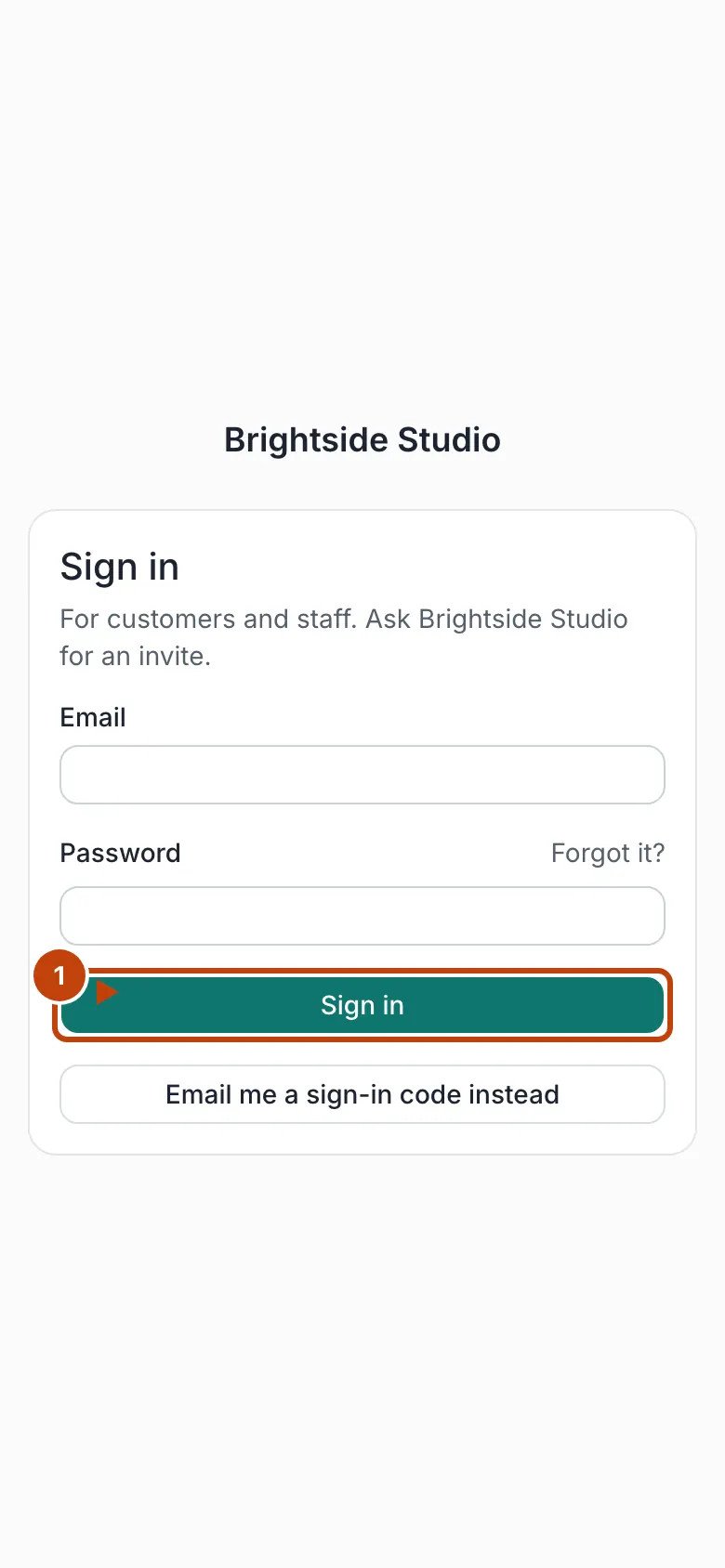
On a phone:
Who can get in
Staff are people on the staff list. The first owner is invited when the site is set up. After that, the owner invites others from admin → Staff.
Customers only reach /portal if the customer portal is on and someone invited them. See Customer sign-in.
After sign-in:
- Staff land in admin
- Customers land in the portal
- Someone who is both is treated as staff first
If you see “no access”, you are signed in but not on the staff list and not invited as a customer. Ask the owner to invite you.
Change your password
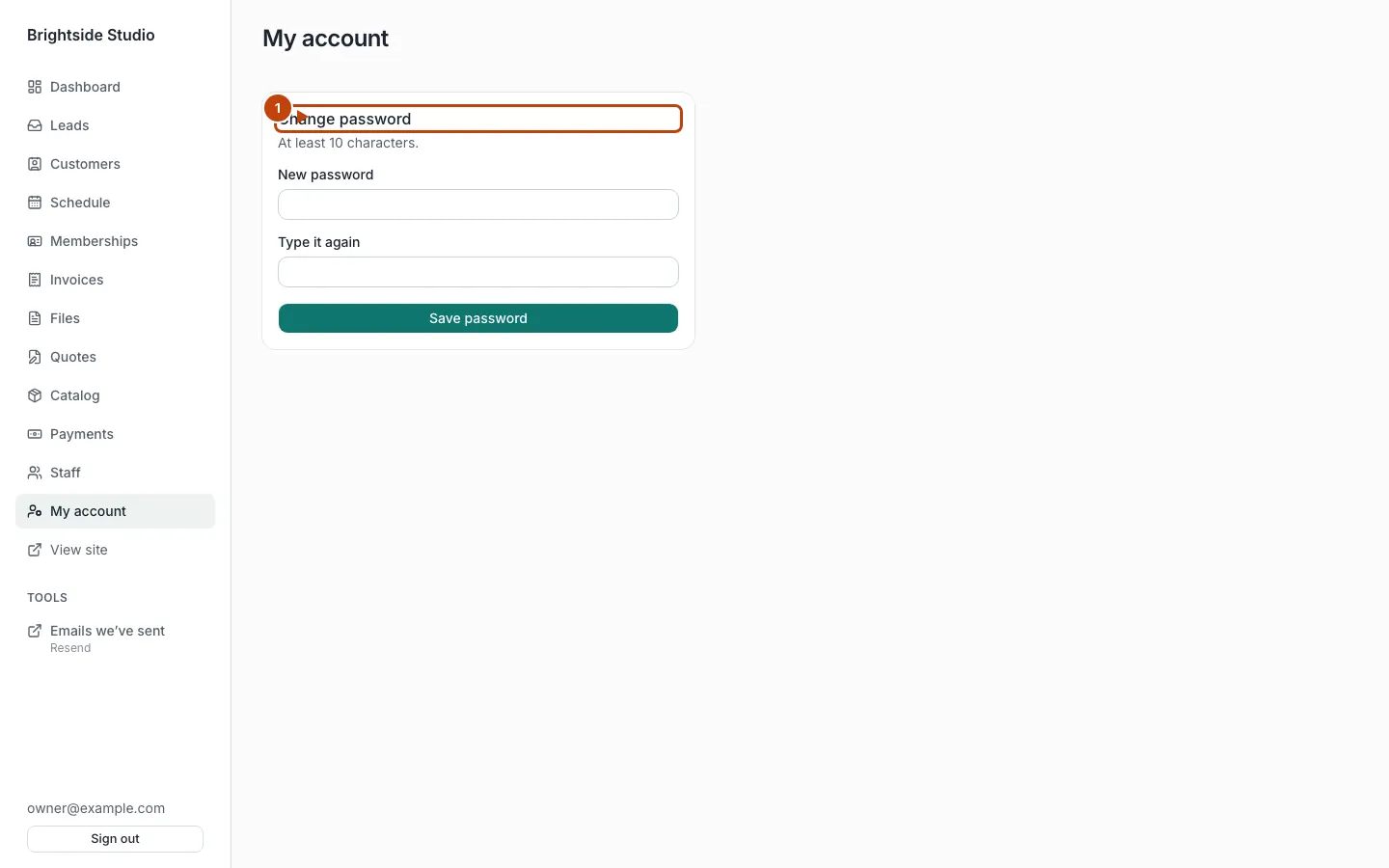
In admin, open My account. Press Change password. Use at least 10 characters.
First things to check
- Look at the left-hand menu. Items like Schedule, Memberships, and Payments only appear when that tool is on.
- Open Customers. Add a person, or convert a won lead.
- Do not send real buyers to checkout until Stripe setup is done on your Stripe account.
Until Stripe keys exist, local and preview deploys pretend to take payment. Nothing is charged. Production pay links say online payment is not set up. Staff can still record cash and checks.
Canonical: https://www.xylosoftware.com/cms/docs/getting-started