On this page
Leads are people who reached out through the site. They are always on. There is no switch to hide the board.
Find a lead
Admin → Leads. Use Board or List. Search by name, email, or phone. Filter by program (what they asked about). Press Filter.
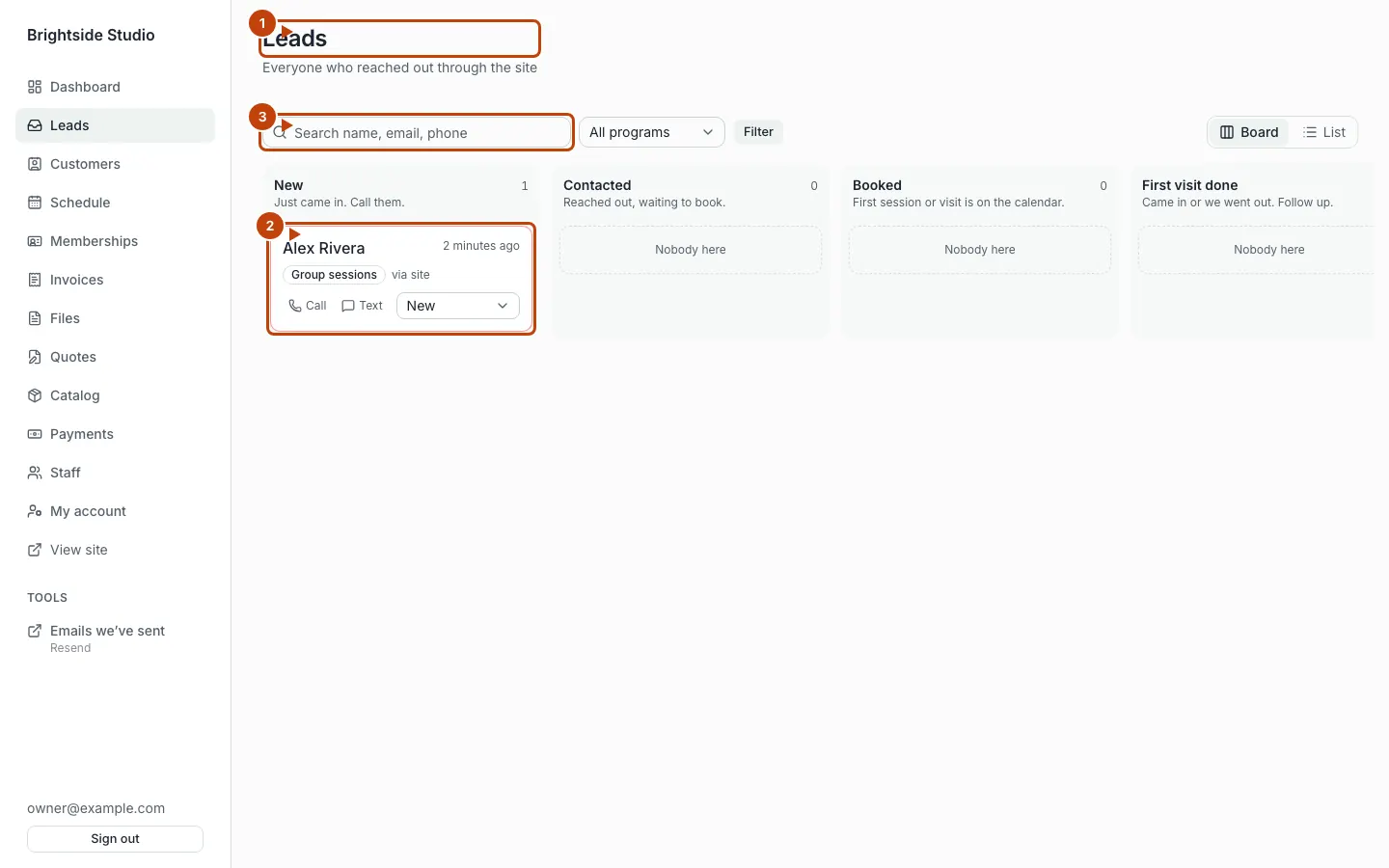
Orange numbers:
- The Leads screen
- A lead card. Press the name to open it.
- Search
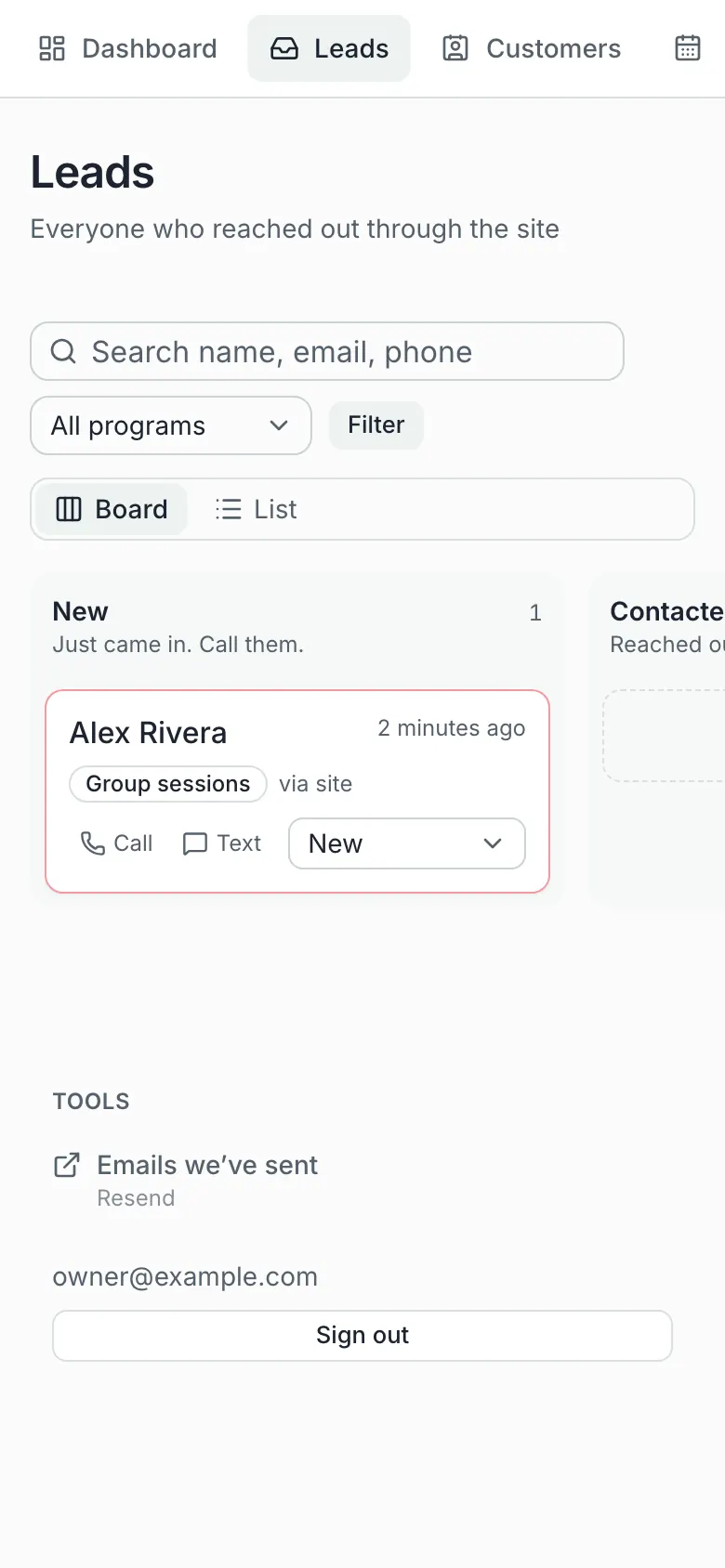
On a phone:
Open a lead
The header has their stage. Demo stages are New, Contacted, Booked, First visit done, Won, and Lost. Your site can use different names. Ask your agent to change the pipeline.
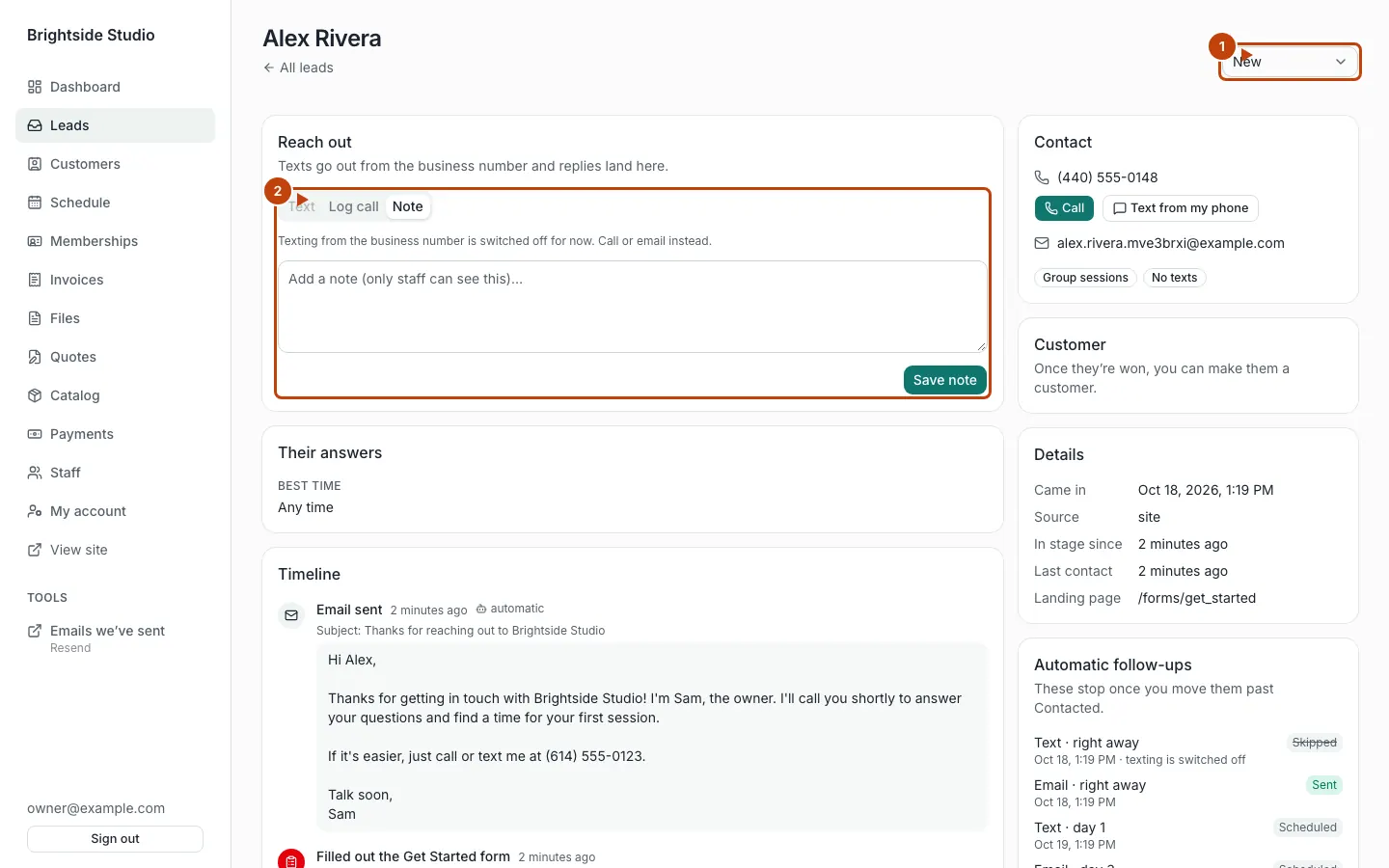
Orange numbers:
- Stage. Pick a new stage to move them. That is how you “move a lead.”
- Reach out — text, log a call, or leave a note
Reach out has three tabs:
- Text — send a text if they opted in
- Log call — note a phone call
- Note — save a note for staff
You can also Call or Text from my phone.
Make them a customer
Move the lead to Won. Then press Make them a customer (your site may say “member” or “client” instead). That creates a customer record. Quotes, invoices, and plans need that record.
If the button errors, they are not in Won yet, or they already have a customer record.
How leads arrive
A visitor fills a form on the public site. That form’s kind is lead. A won path later becomes a customer.
A form of kind request only emails staff. It does not create a lead.
Spam-trap submissions are rejected with a visible error. If a visitor sees that, ask them to contact you directly. Browser autofill can fill a hidden field by mistake.
Follow-up messages
The site can text or email a lead on a schedule. That lives in site config, not in a settings screen. Ask your agent to change the wording or timing. See Messages.
What you cannot do here
You cannot turn the leads board off from admin. Turning leads off so forms only email you is still planned. Until then, every lead form creates a lead.
Canonical: https://www.xylosoftware.com/cms/docs/leads