On this page
Staff upload PDFs, text files, and zips in admin → Files. Each file gets a stable link you can paste on the site, in a text, or in the portal.
Upload a file
Press Upload a file, pick the file, then Upload.
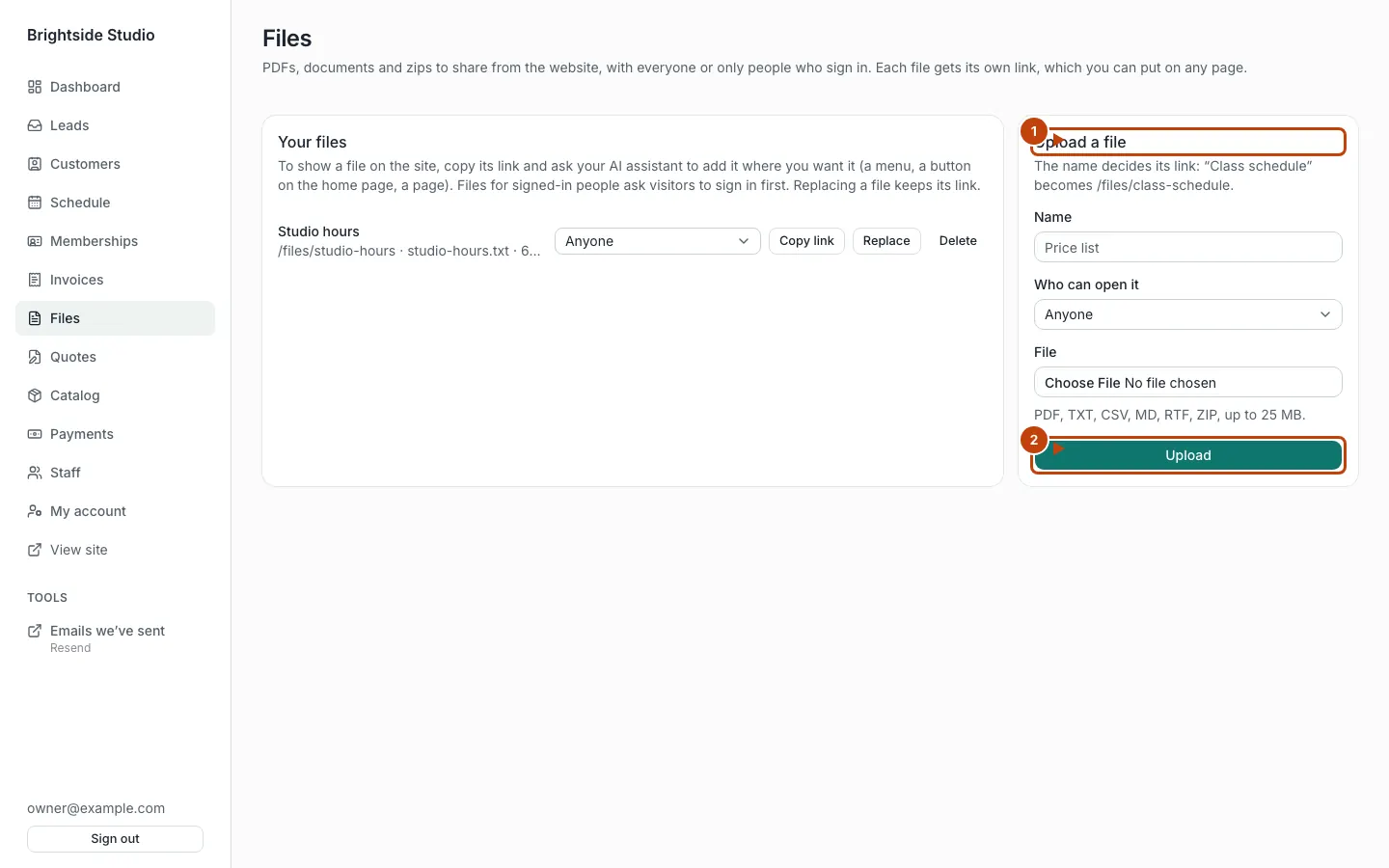
Orange numbers:
- Upload a file
- Upload
If nobody has uploaded yet, the page says No files yet. Upload one to get a link for it.
Copy the link
Each file has Copy link. Paste that on a page, in a text, or in the portal.
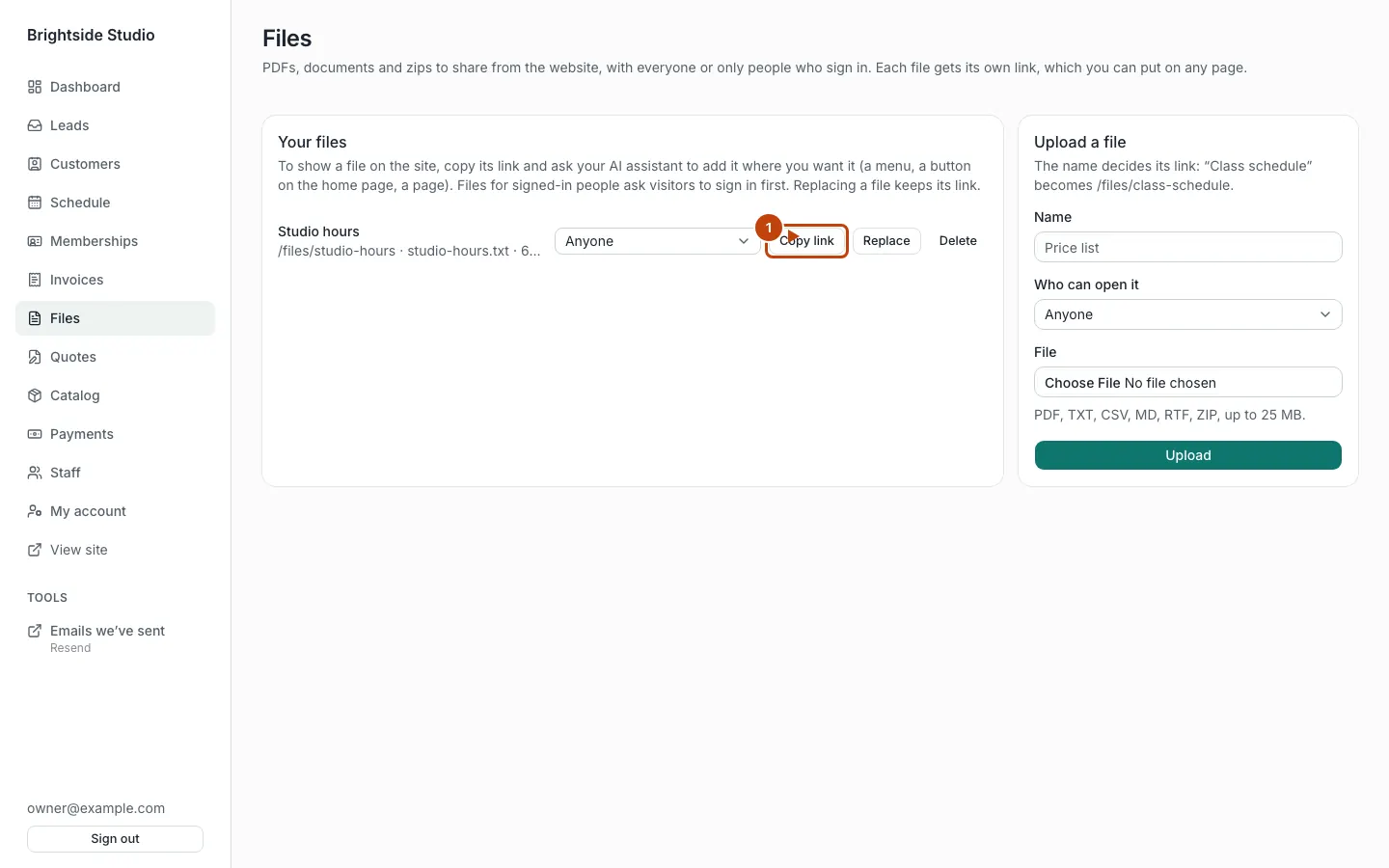
Orange numbers:
- Copy link
You can Replace or Delete later.
Who can open the link
When the customer portal is on, you pick:
- Anyone
- Signed-in customers only (your site may say members or clients)
Signed-in staff can open either kind. Put a signed-in-only link on a portal page, not on a public blog post, or visitors who are not signed in will be blocked.
The public address looks like /files/{slug}. The slug is the short name in the link. Ask your agent if you want that link on a page. Do not guess slugs.
What this is not
Files is not a full media library. Photos on the public homepage still live in the site files. Ask your agent to change those. See Edit pages and content.
Canonical: https://www.xylosoftware.com/cms/docs/files